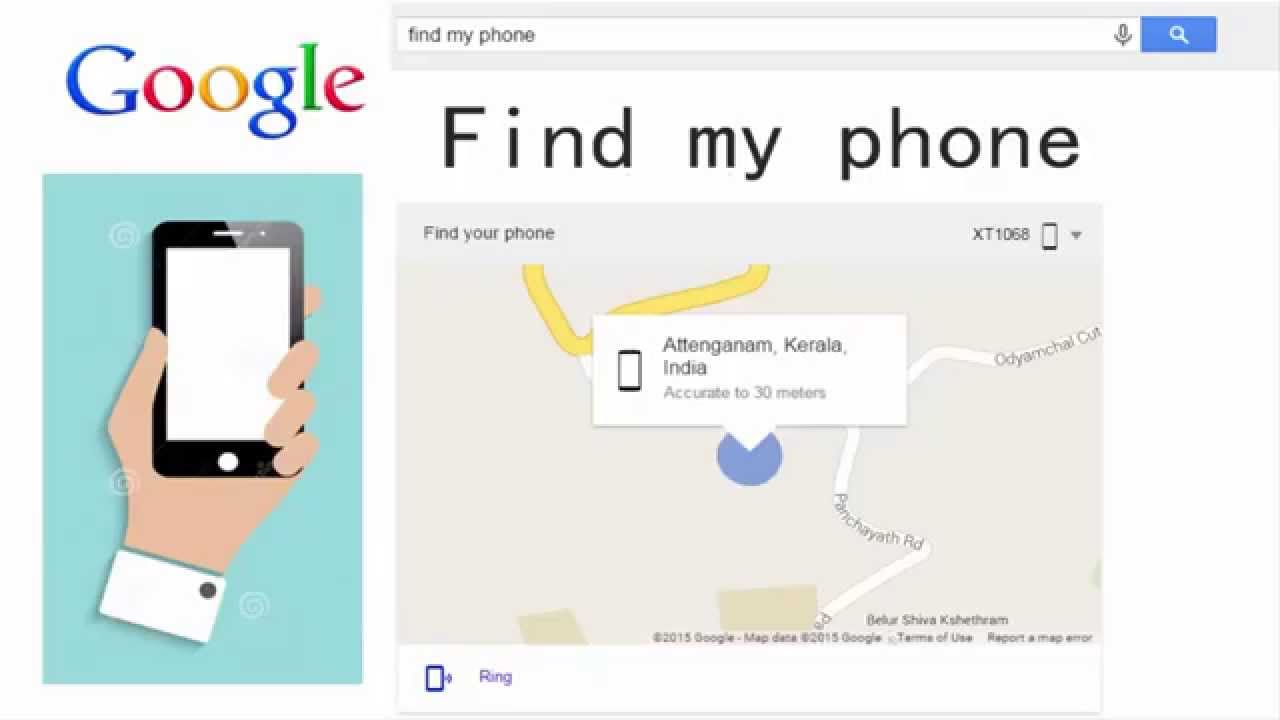
Ever misplaced your phone and felt a mini heart attack coming on?
We've all been there. You frantically search pockets, retrace your steps, and that sinking feeling intensifies with every passing moment. But fear not, Android users! Google has a built-in hero waiting in the wings: Find My Device.
This nifty feature is like a digital bloodhound, sniffing out your lost phone's location and offering a suite of tools to get it back in your hands. Let's take a deep dive into how Find My Device can be your knight in shining armor.
Activating Your Digital Bloodhound: Prepping Find My Device
Before disaster strikes, it's crucial to activate Find My Device. Think of it as putting a tracker on your phone, except much less conspicuous (and thankfully, no trackers to remove later). Here's how to unleash its potential:
-
Dive into Settings: Open the Settings app on your Android device. It's usually represented by a cog or gear icon.
-
Security Check: Look for the "Security" section. Depending on your device's model, it might be called "Security & location" or "Google Security."
-
Find My Device: Your Guardian Angel: Tap on "Find My Device." If it's not already enabled, toggle the switch on. This activates the service and allows Google to locate your phone when needed.
Remember: This is a one-time setup. Once activated, Find My Device runs silently in the background, ready to spring into action whenever you call upon it.
Unleashing the Power of Find My Device: When Your Phone Goes AWOL
So, you've misplaced your phone. Don't panic! Grab a spare device (a friend's phone, laptop, or tablet will work) and follow these steps:
-
Head to the Find My Device Website: Open a web browser and navigate to https://www.google.com/android/find. This is your direct line to your lost phone.
-
Sign In with Your Google Account: Use the same Google Account that's linked to your missing phone. If you have multiple devices associated with your account, you'll be able to choose the specific one you're looking for.
-
Behold! Your Phone's Location (Hopefully!): Find My Device will attempt to pinpoint your phone's whereabouts on a map. The accuracy can vary depending on factors like GPS signal strength and Wi-Fi connectivity, but in most cases, it will provide a good indication of where your phone might be.
Here's the cool part: Find My Device offers a variety of options to help you retrieve your phone, depending on the situation:
-
Make it Ring (Even on Silent!:): Did you just misplace your phone around the house? This feature is a lifesaver. Even if your phone is on silent mode, Find My Device can blare an alarm at full volume, making it easier to locate in the couch cushions or under a pile of laundry.
-
Lock it Down: If you suspect your phone might be in the wrong hands, you can remotely lock it with a PIN, password, or pattern. This prevents unauthorized access and keeps your data safe.
-
Erase Everything (As a Last Resort): If all else fails and you're certain your phone is irretrievably lost or stolen, you can take the nuclear option: a factory reset. This wipes all your data from the device, protecting your personal information and discouraging anyone from keeping it.
Find My Device: Beyond Location Services
While finding your lost phone is the primary function, Find My Device offers additional features that come in handy:
-
See the Last Known Location: Even if your phone is currently offline, Find My Device will display the last known location it registered before the battery died or it went out of range. This can provide valuable clues in your search.
-
Monitor Battery Life: Is your phone about to die? Find My Device can show you the remaining battery percentage, so you can prioritize your search efforts if needed.
-
See the Connected Wi-Fi Network: If your phone is connected to a Wi-Fi network, Find My Device will show you the network name. This can be helpful if you lost your phone in a large building with multiple Wi-Fi hotspots, narrowing down the search area.
Keeping Your Android Companion Safe: Proactive Measures
Finding a lost phone is stressful, but there are steps you can take to prevent it from happening in the first place:
-
Enable Location Services: This might seem obvious for a location-based service, but double-check that your location services are turned on. Find My Device relies on this to pinpoint your phone's whereabouts.
-
Keep Your Phone Charged: A dead phone is a

Tidak ada komentar:
Posting Komentar